MedWand KIOSK - Creating and Joining a Patient Exam
Creating and Joining a Patient Exam
Creating an Appointment
1. Navigate to https://portal.medwand.com in your Chrome web browser and log in with your provided username and password
Note: We strongly encourage the use of Chrome as it's the most stable and will provide the best experience. Other web browsers can be used, however, you may run into performance issues.
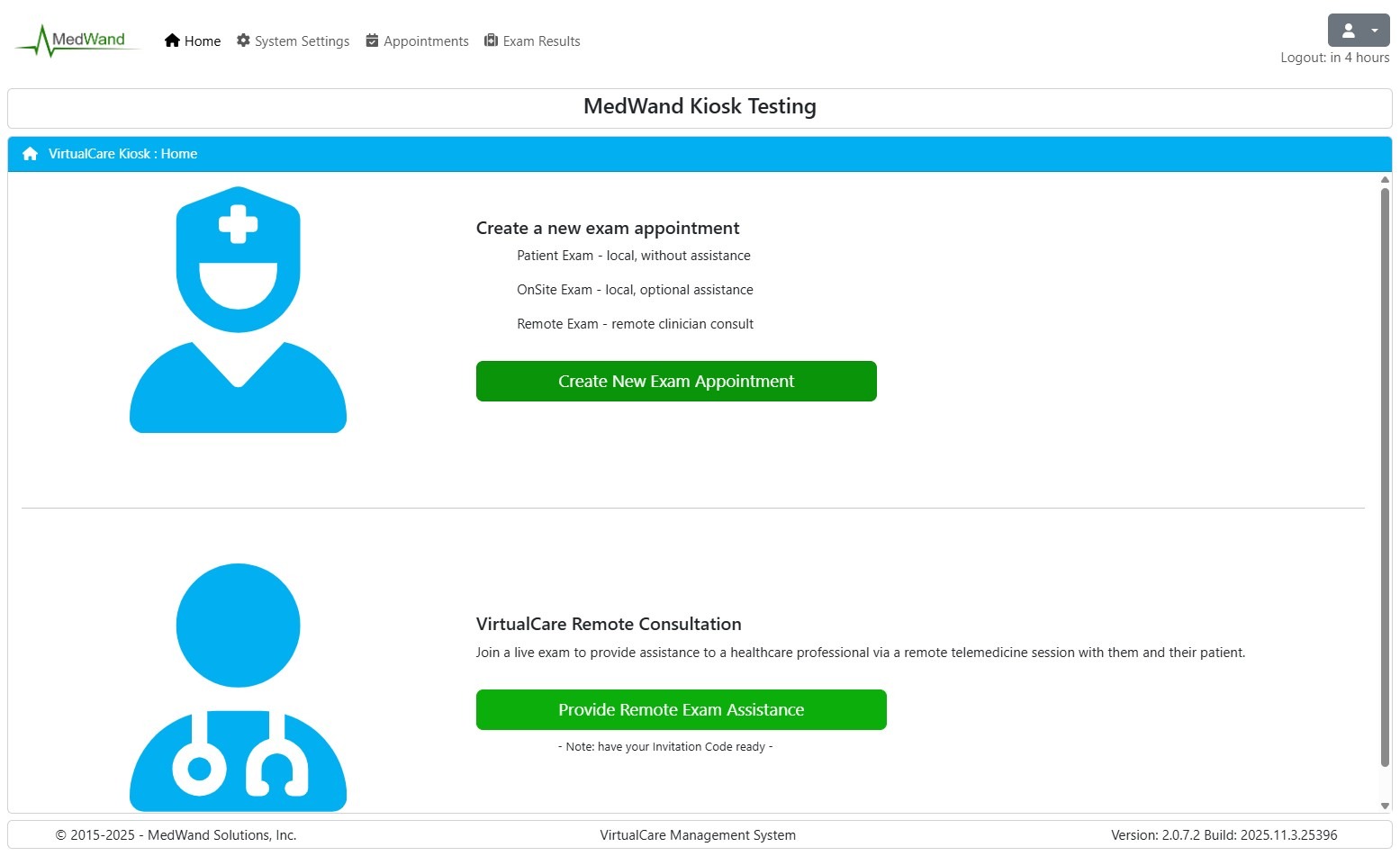
2. Click "Create New Exam Appointment" on the home screen (then skip to step 5)
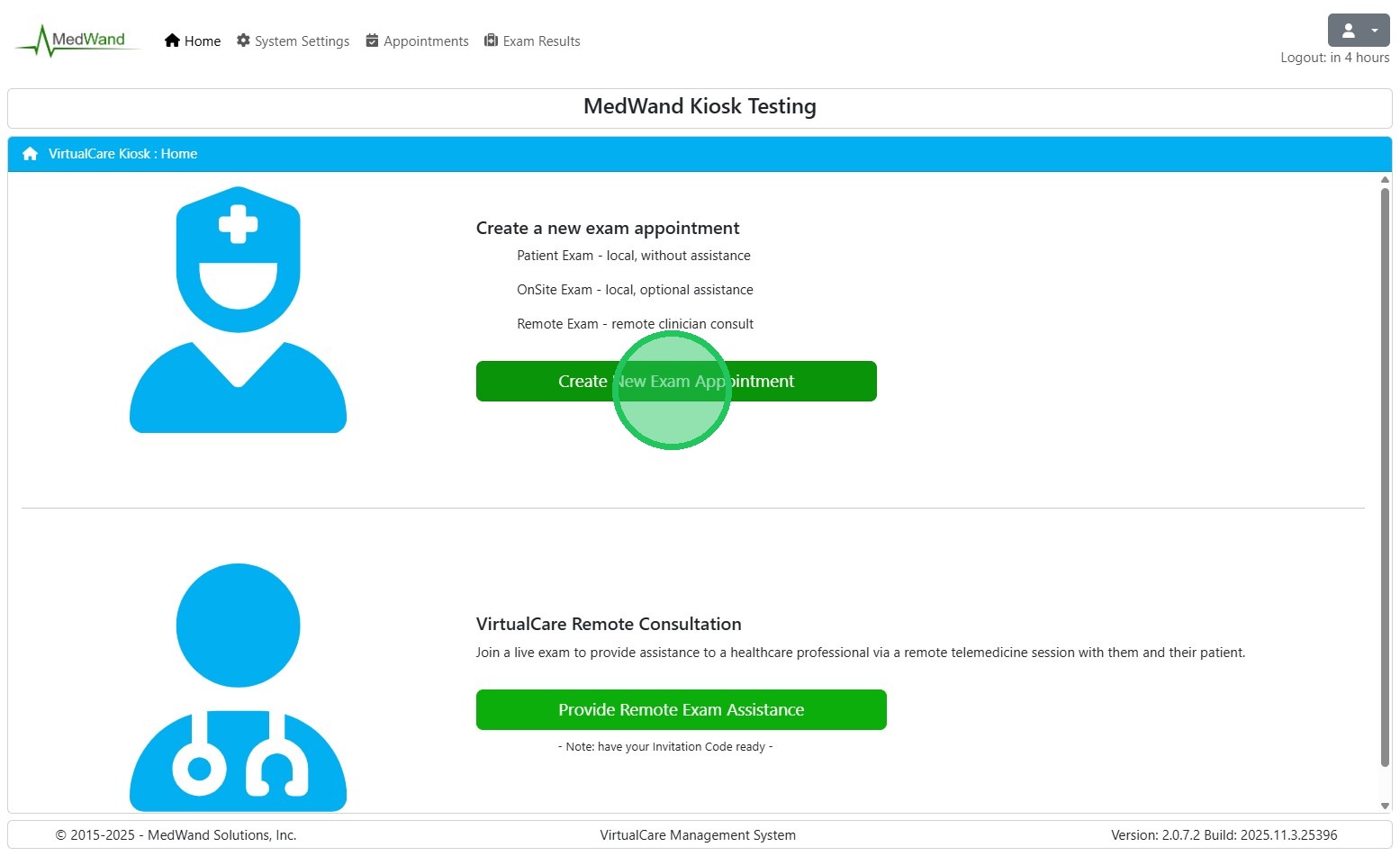
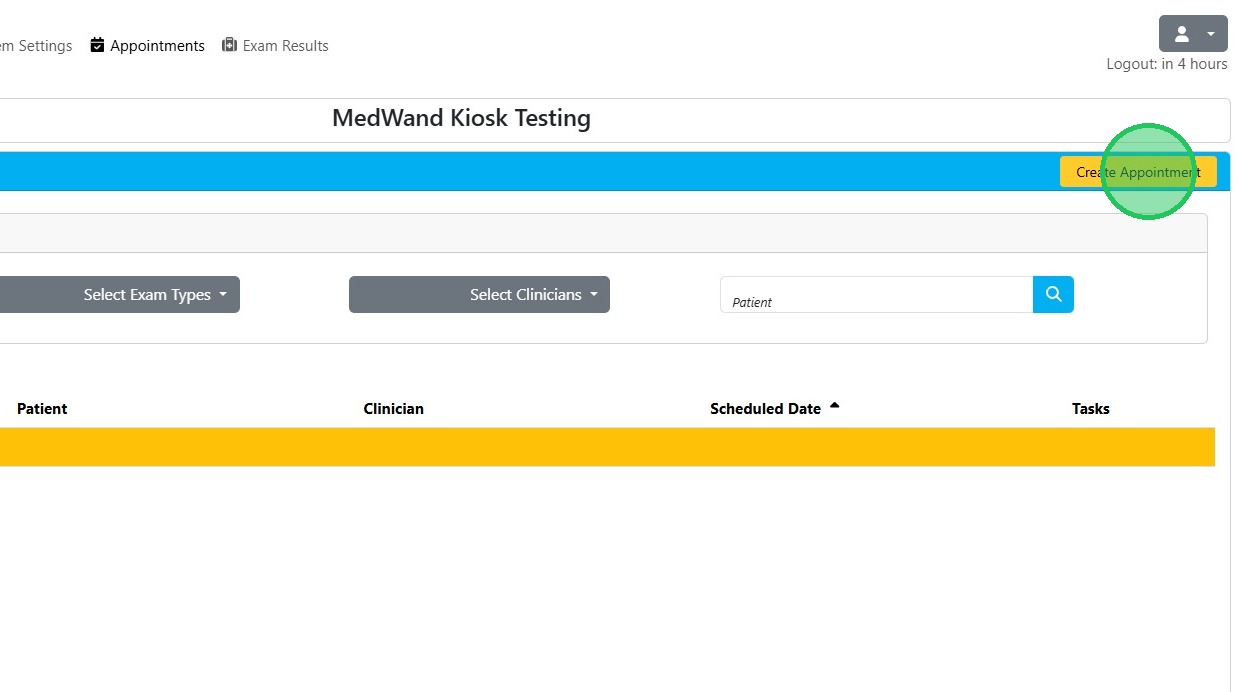
Alternatively, you can also create an appointment by navigating to the "Appointments" tab at the top of the page and selecting "Create Appointment" in the top right. (3-4)
3. Alternate appointment creation method
Select "Appointments" in the top navigation bar
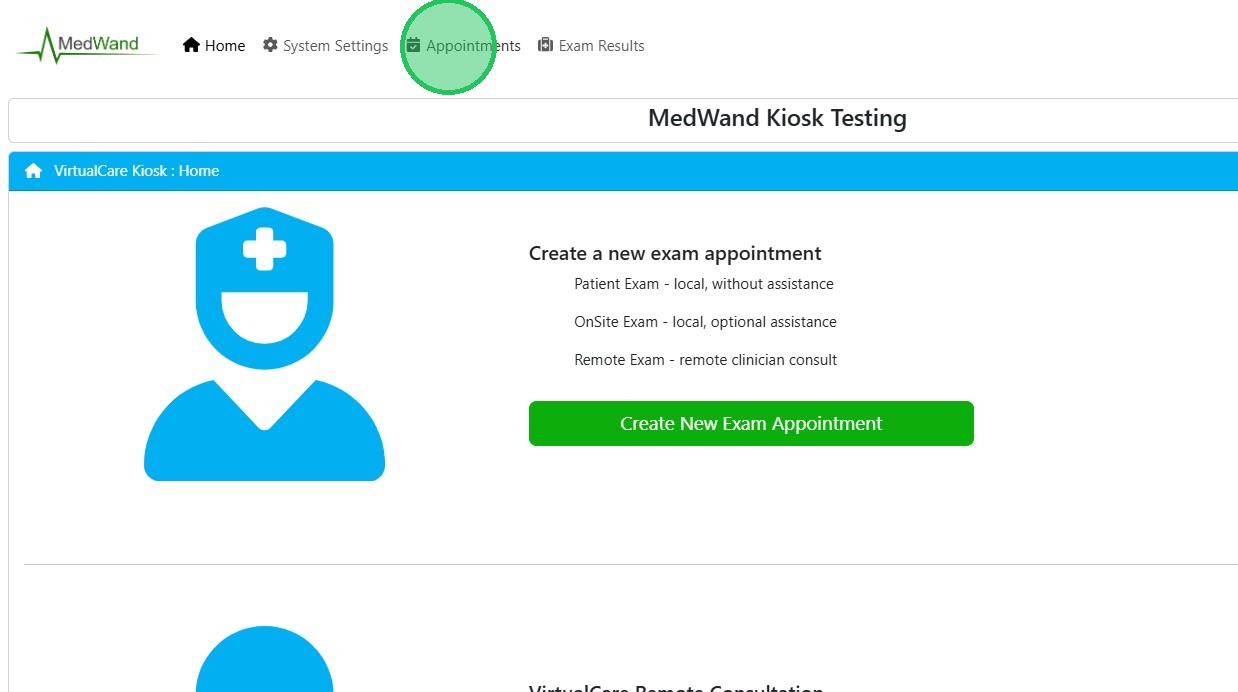
4. Select "Create Appointment" in the top right corner
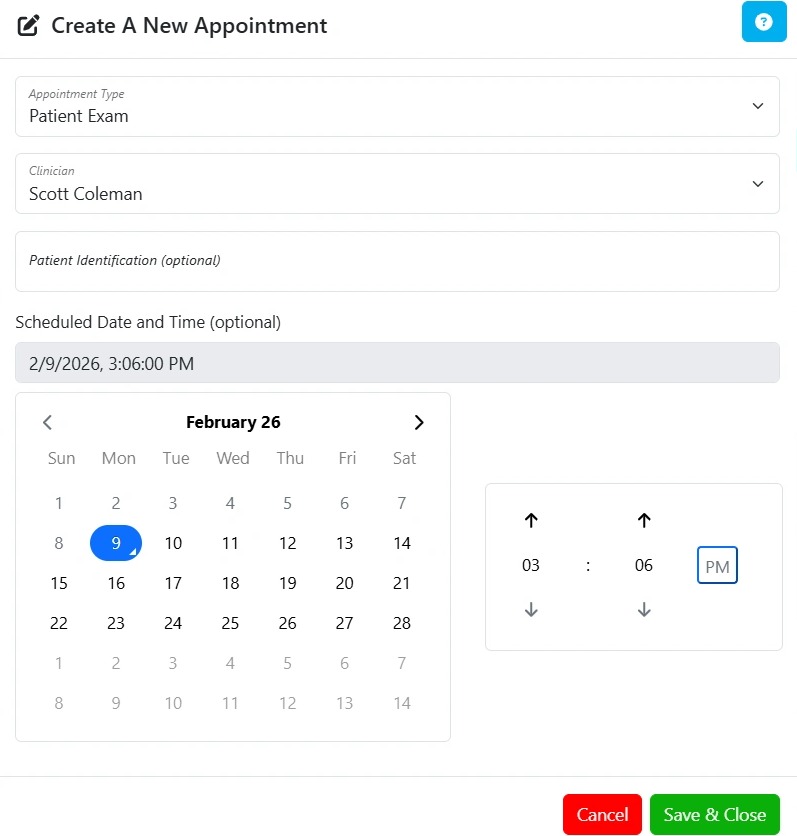
5. Select or enter the Appointment Type (Patient Exam), Clinician, Patient Identifier, and Scheduled date and time (optional)
- A Patient Exam type is where no healthcare professional will be involved and the patient is expected to use the MedWand device and collect vitals by themselves.
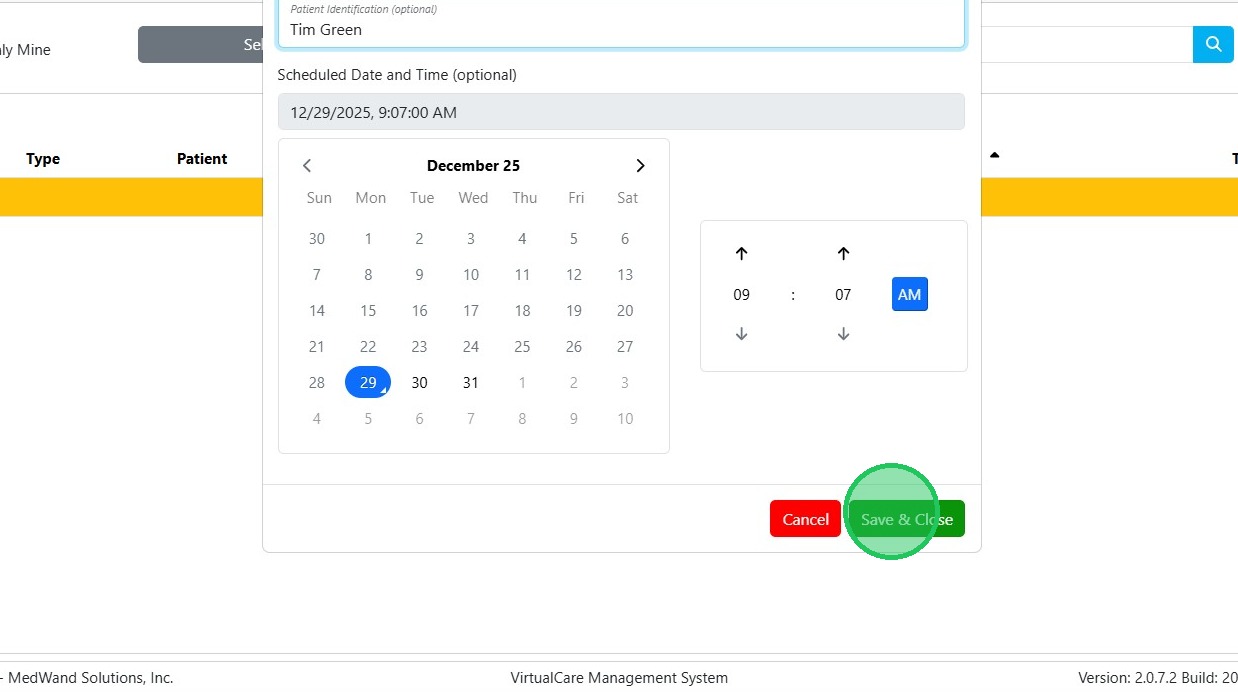
6. Click "Save & Close"
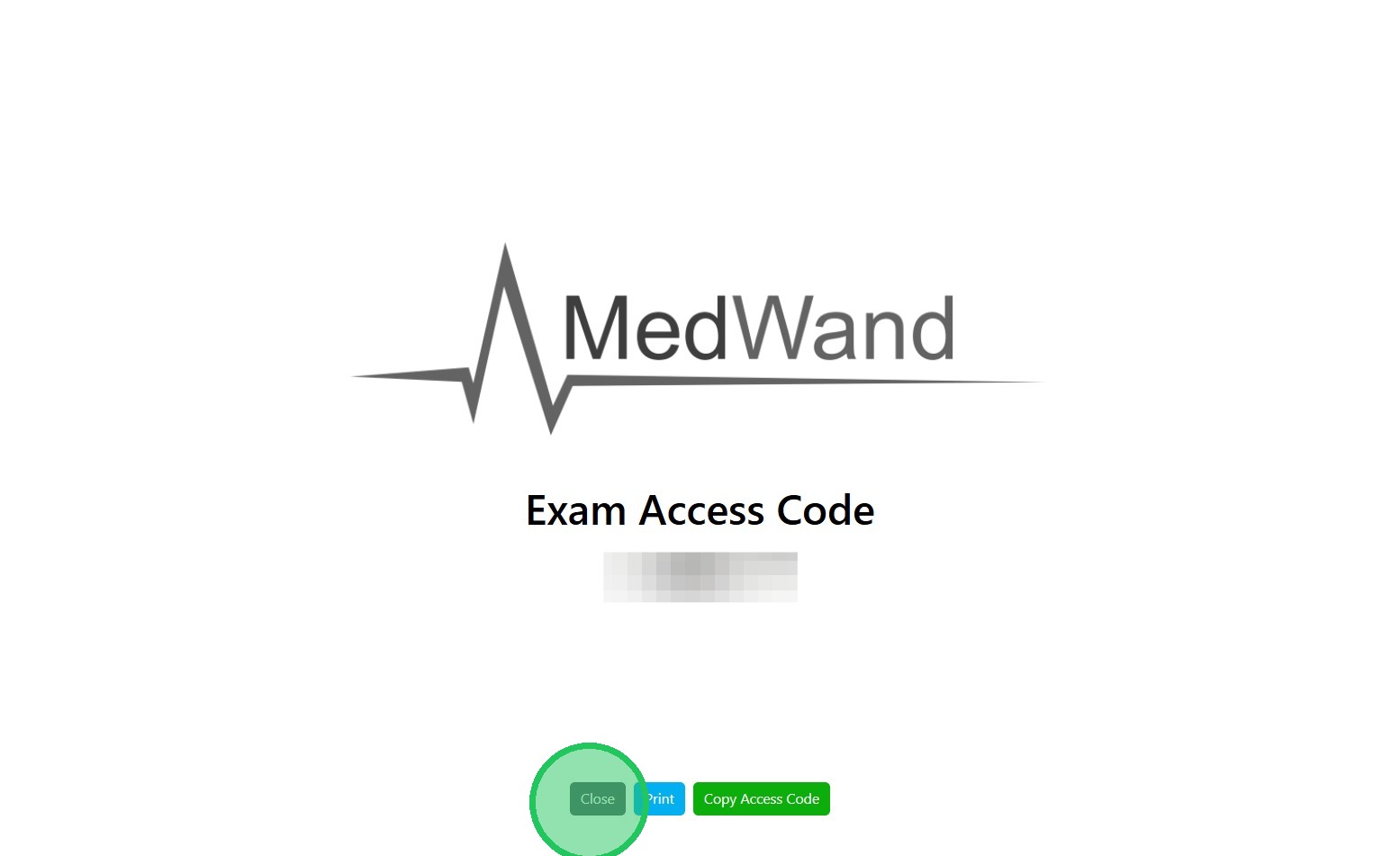
7. You will then be presented with a splash page containing the join code for your patient. You can copy or print the number from this page if desired. If you close this page, you'll still be able to access the exam code from your Appointments screen.
Select "Close" at the bottom of the page
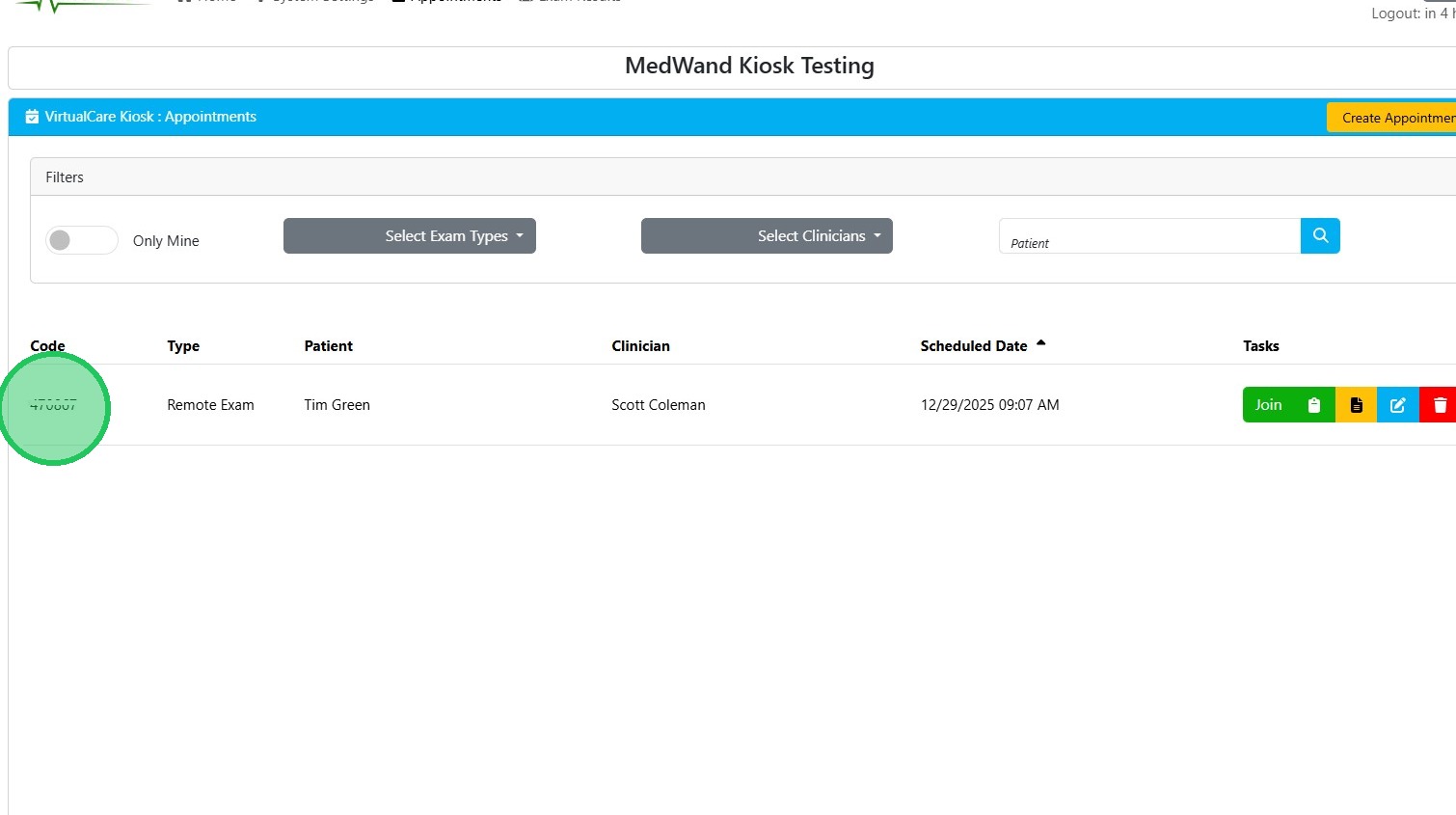
8. You should now be presented with your standard Appointments screen with the new exam appointment listed. The code on the far left is the patient's access code; this is the same number that was presented to us on the previous page and should be provided to the patient to launch the exam on their mobile device.
Joining an Exam as the Patient
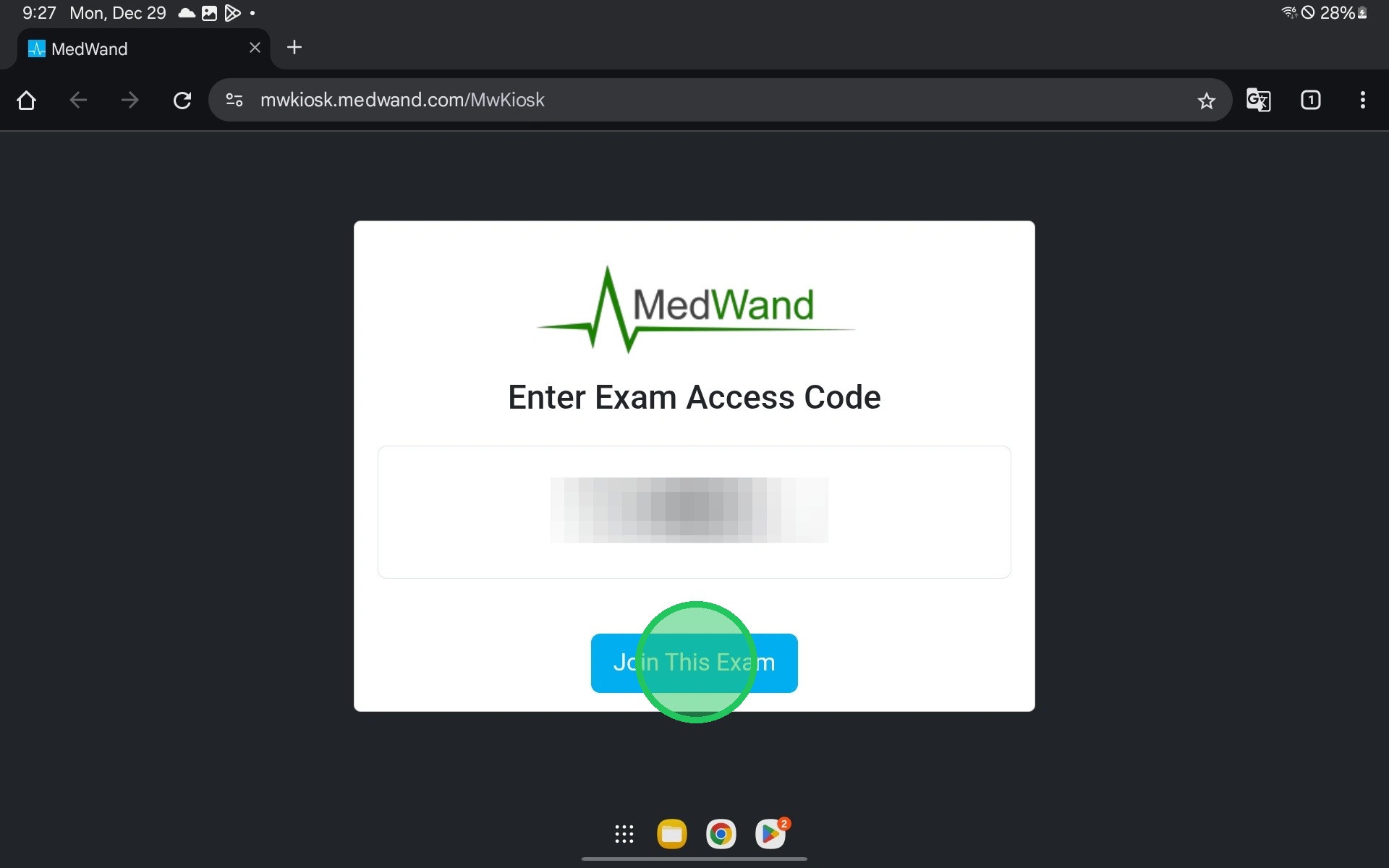
9. The patient will need to navigate to https://mwkiosk.medwand.com/ in the Chrome browser on their compatible Smart Device (tablet, phone, etc.)
Note: The patient will need to download the MedWand VirtualCare App to their device prior to entering the join code if they have not already done so.
To join the exam, your patient will need to enter their exam code on this screen and select "Join This Exam". Doing so will pull down their appointment information from our server and launch the MedWand VirtualCare App.
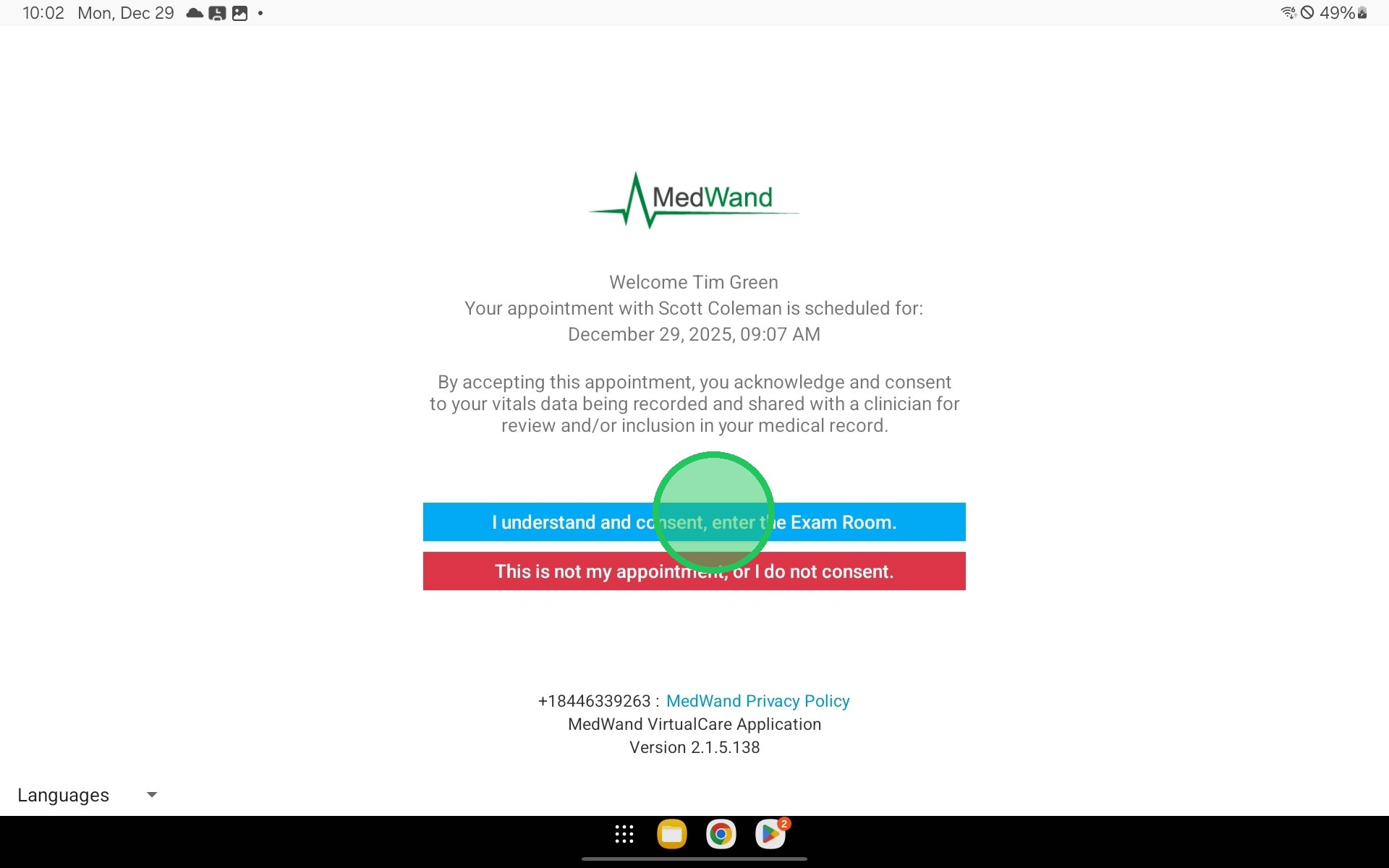
10. The patient will review the appointment consent screen and select "I understand and consent, enter the Exam Room"
11. Below is what a patient will see upon entering a Patient Exam, where they will collect their own vitals asynchronously and upload them for their clinician to review at a later time.
Navigate to the sensors specified by your care team and follow the onscreen instructions to collect the desired vitals.
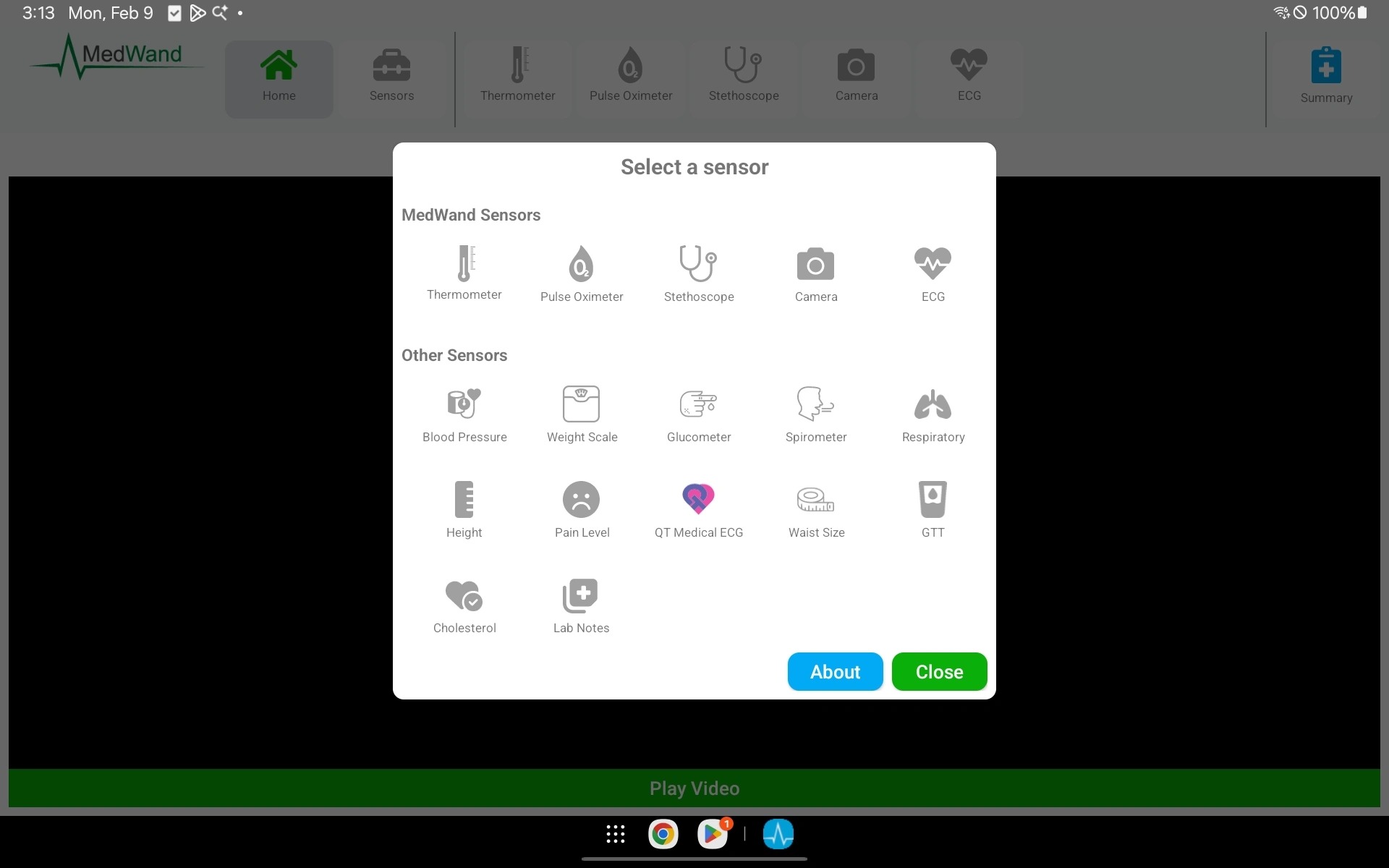
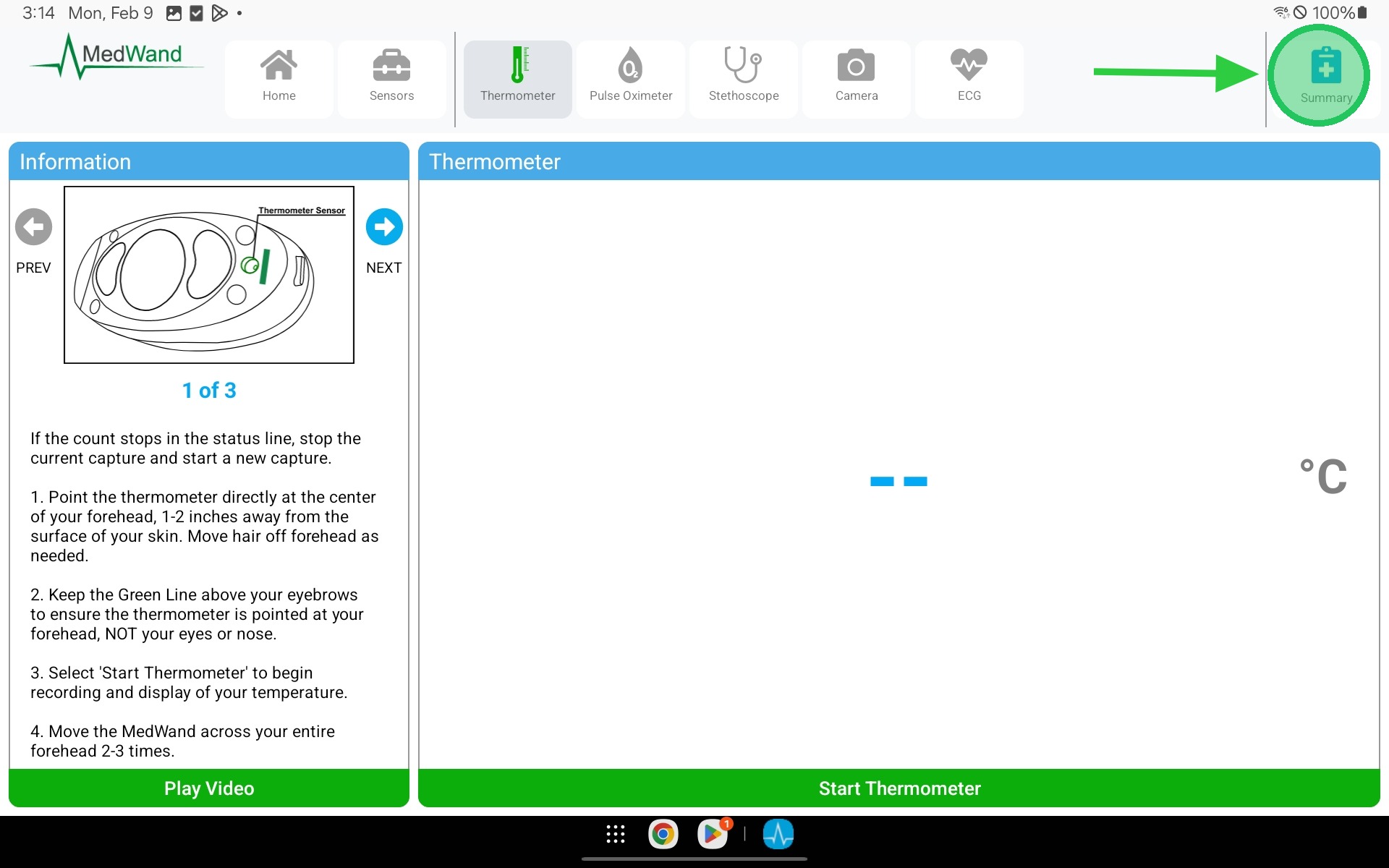
12. Once you've collected all of the necessary vitals and you're ready to end the exam, tap the Summary button in the top right of the exam.
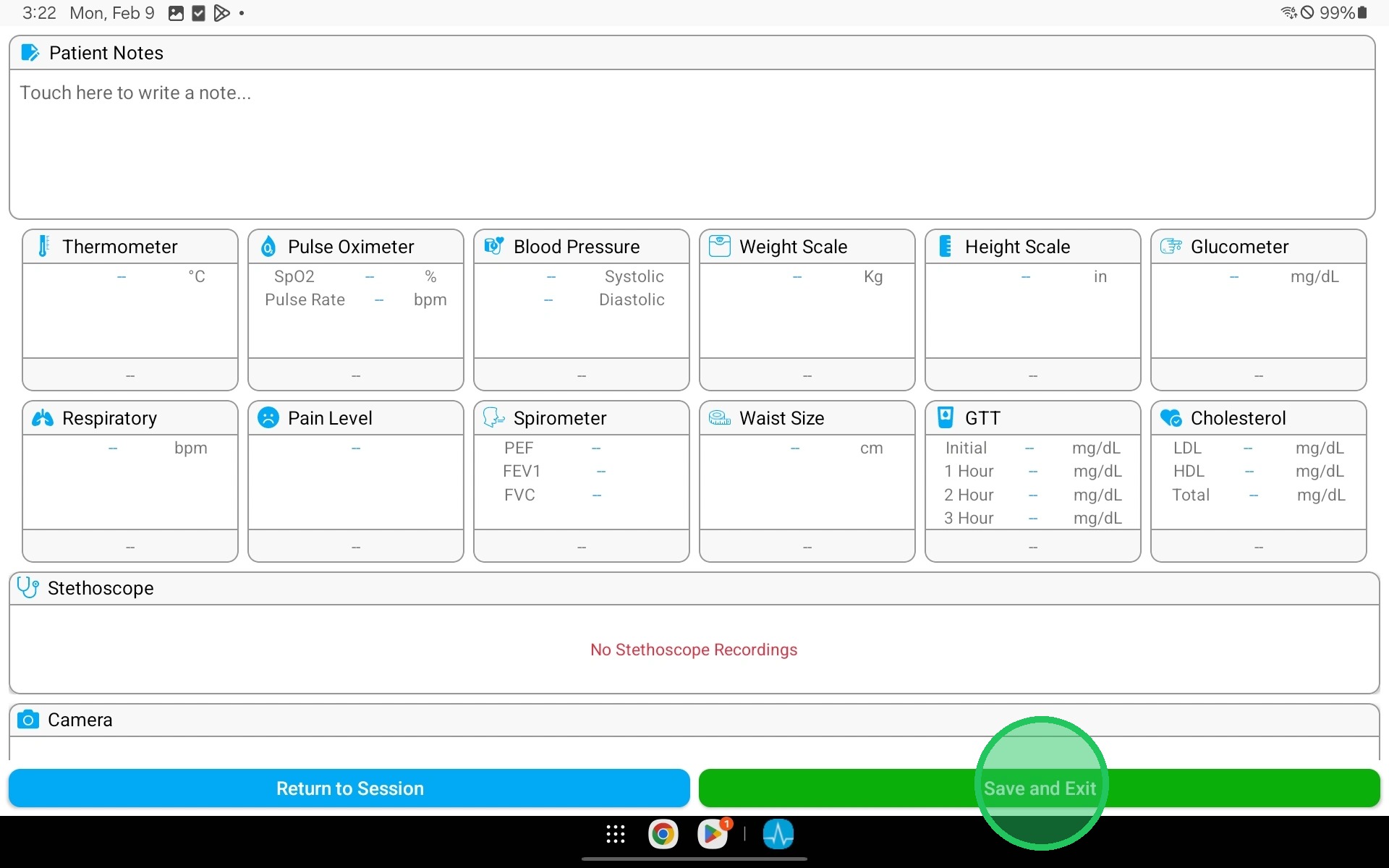
13. Review the vitals you've collected to ensure you're ready to end the exam. If you need to go back and retake any vitals, select Return to Session. To end the exam and upload your results, select Save and Exit in the bottom right
Reviewing Completed Exam Results as a Clinician
14. Open your MedWand Portal and navigate to the "Exam Results" tab in the top navigation bar.
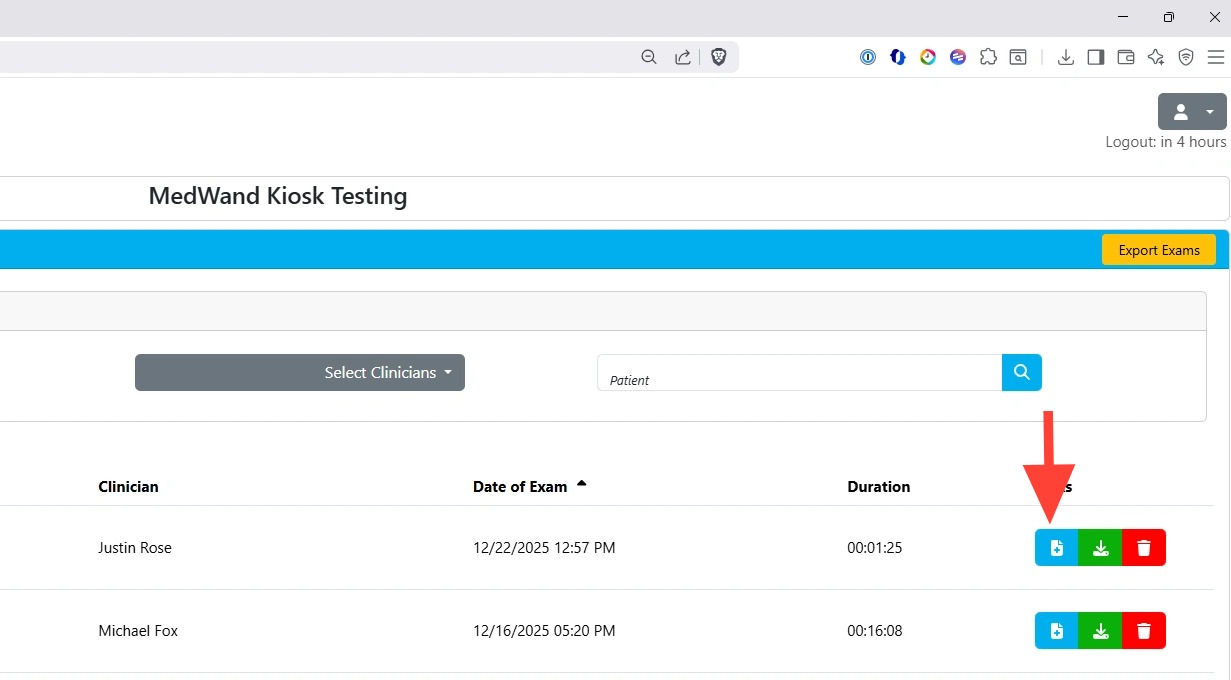
Select the blue "View Results" button next to the desired appointment. This will launch an HTML view of the collected results in your browser.
Note: The MedWand Portal only stores exam results for 30 days. If results need to be maintained for a longer period, see the next step for instructions on how to download the results.
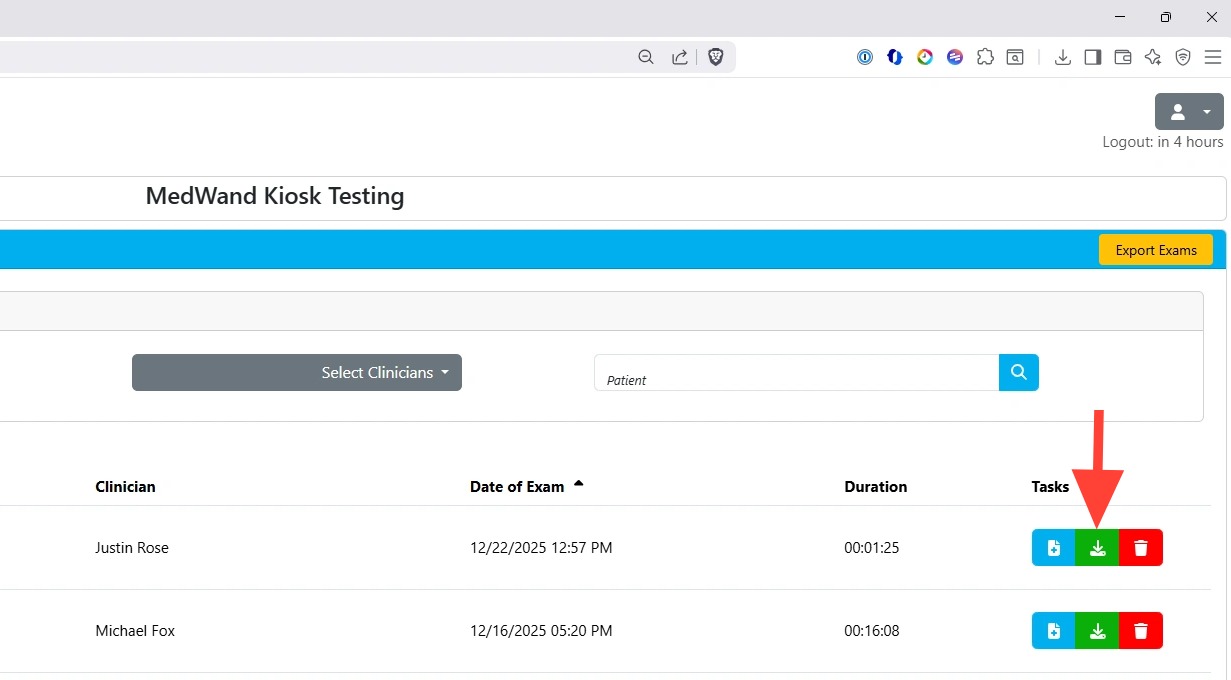
15. To download exam results, select the green "Download" button to the right of the desired exam.
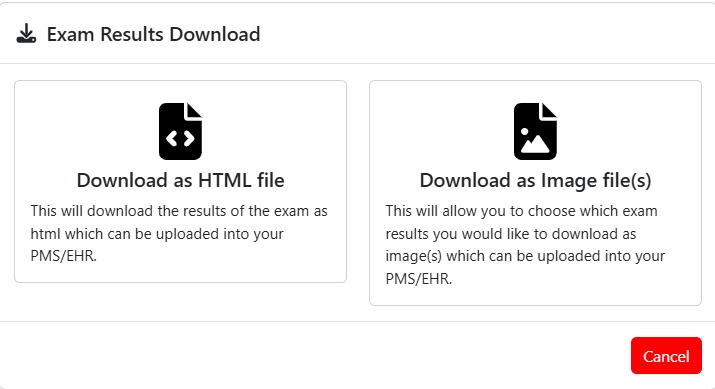
16. Select one of the available options
Download as HTML File - Allows you to download all of the exam results as a single HTML file that can be opened in a standard web browser.
Download as Image File(s) - Allows you to download individual vitals as media files. This is useful if you only need to save certain readings from the exam or you're unable to use HTML files.