MedWand KIOSK Guide
MedWand KIOSK Interface Guide
This guide provides a high-level overview of the MedWand KIOSK software and interface, which is used by non API integrated customers for managing MedWand Exams and their accompanying results. For detailed guides by exam type, please navigate to the links below.
Login Page
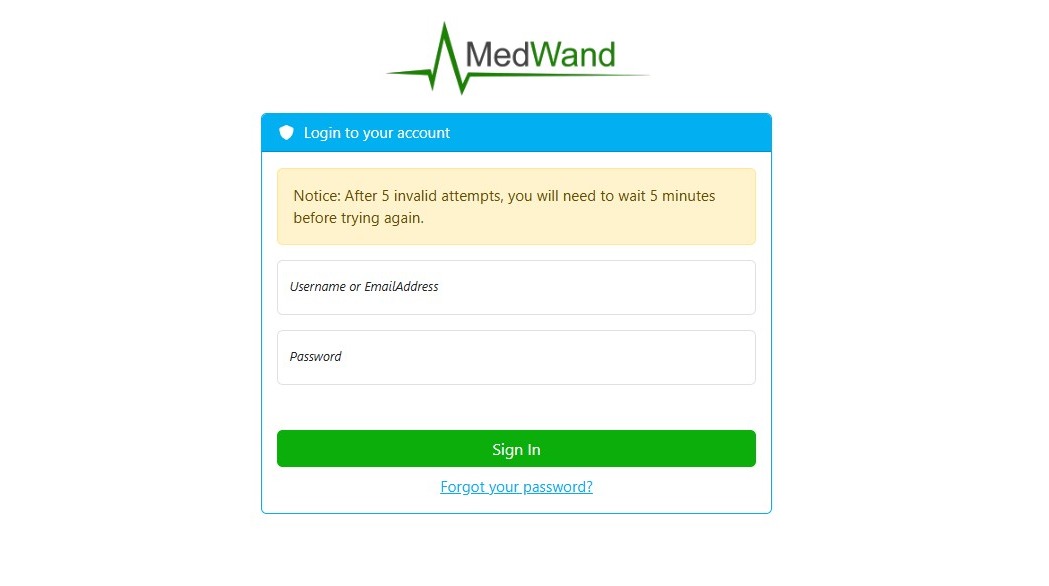
Navigate to https://portal.medwand.com and login using your provided credentials.
Home

Upon logging into your KIOSK Portal, you will be presented with the home page. This page has two quick-access buttons for commonly used functions.
- Create New Exam Appointment - Navigates immediately to the exam creation wizard without needing to first open the Appointments page.
- Provide Remote Exam Assistance - Navigates to the Remote Exam Assistance entry page. This functionality is exclusive to the OnSite exam type and is used by a remotely connecting clinician to convert your OnSite exam to a full audio/video telemedicine visit. (The clinician will need to be provided a six-digit code to join the exam. This code is generated when the patient or OnSite staff taps the invite button in the MedWand app).
System Settings
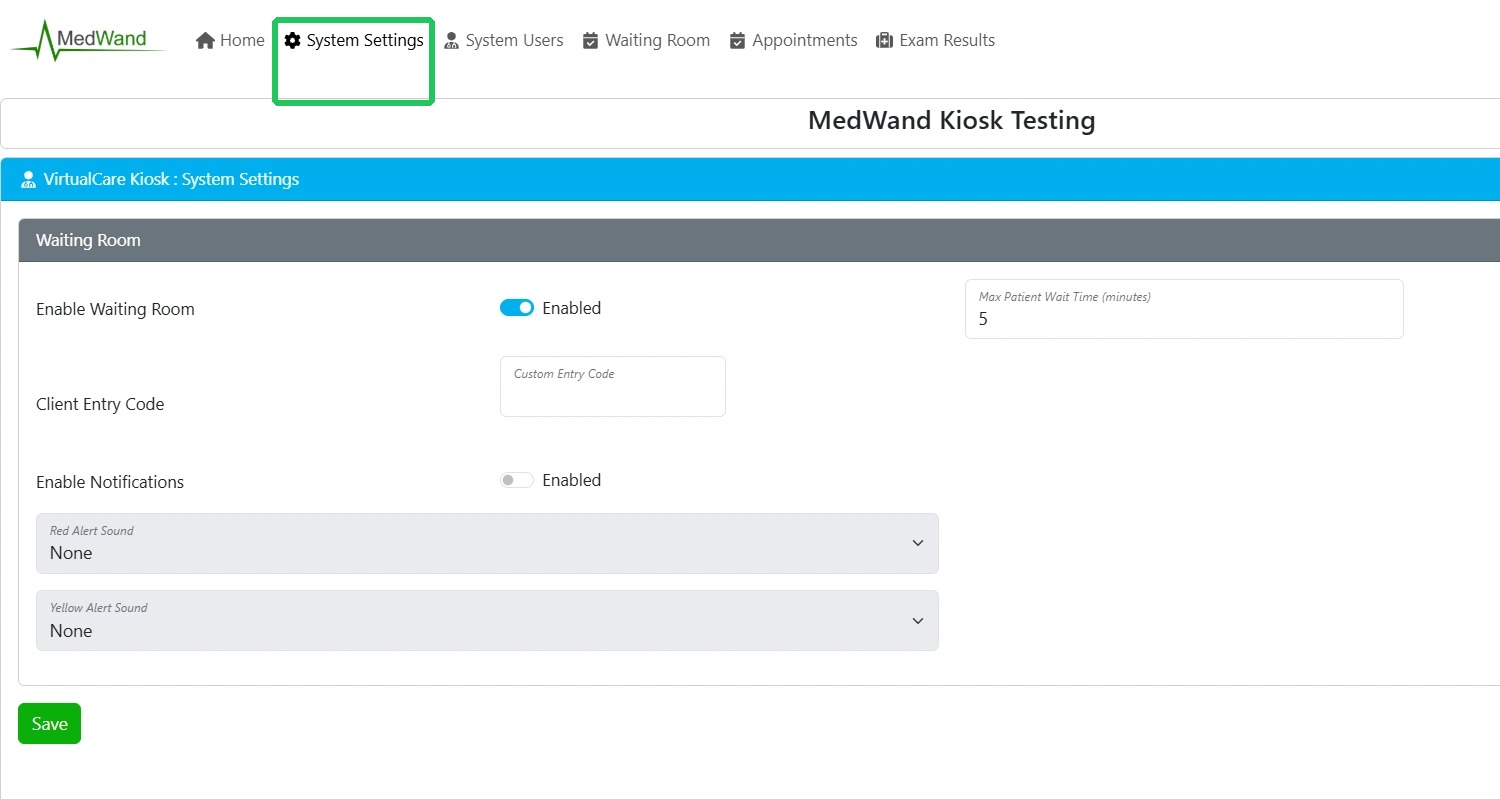
The System Settings page contains several tools that can be used to enable or disable specialized functionality for your KIOSK account. Be sure to hit SAVE in the bottom right corner after making any changes to this page.
- Enable Waiting Room - This toggle switch allows you to enable or disable the Waiting Room functionality for your account. The waiting room will be covered in more detail later in this guide.
- Max Patient Wait Time (minutes) - This field allows you to customize how long a patient must be waiting alone in an exam room before their waiting room status changes from the standard yellow alert to red alert.
- Client Entry Code - Allows you to set the Client Entry Code. This field only applies to customers who have had a custom MedWand KIOSK implementation developed that replaces the unique six digit exam join code with a static passcode format.
- Enable Notifications - This toggle switch allows you to enable or disable audio alerts to notify you when a patient has joined a remote exam and is waiting for a clinician to join. (Audio notifications will only play if you're on the waiting room page)
- Red Alert Sound - This dropdown is used to set a notification sound for the "Red" alert status.
- Yellow Alert Sound - This dropdown is used to set a notification sound for the "Yellow" alert status.
System Users
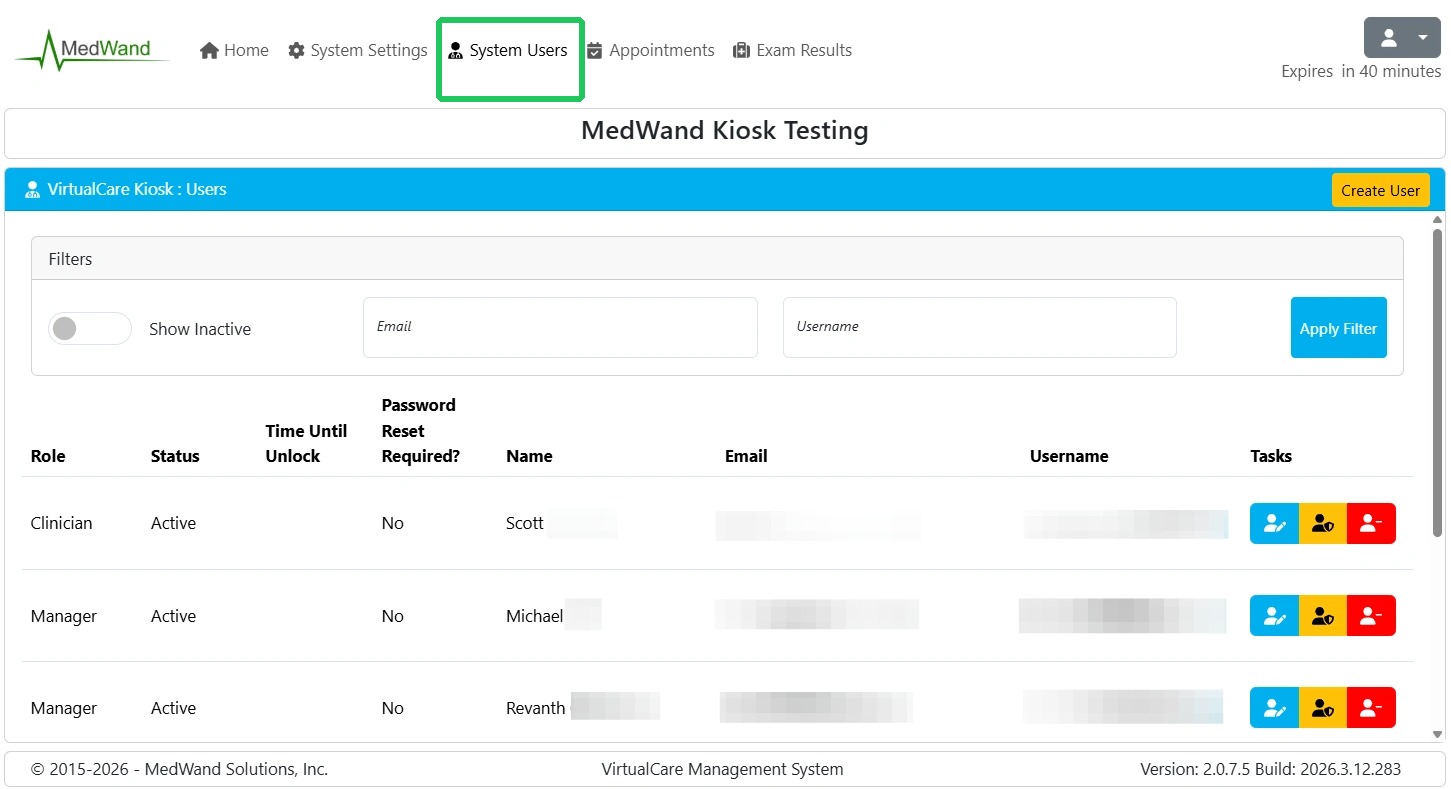
The System Users page allows Managers to create and manage logins for staff members and clinicians using the KIOSK Portal.
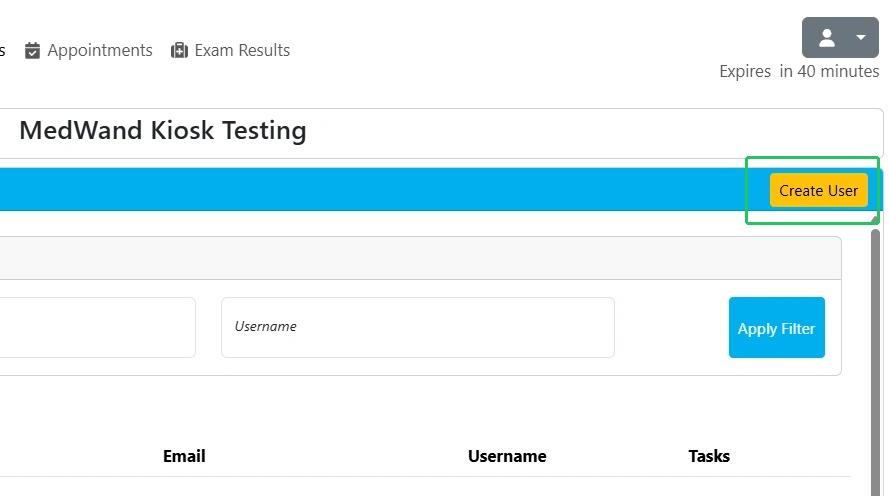
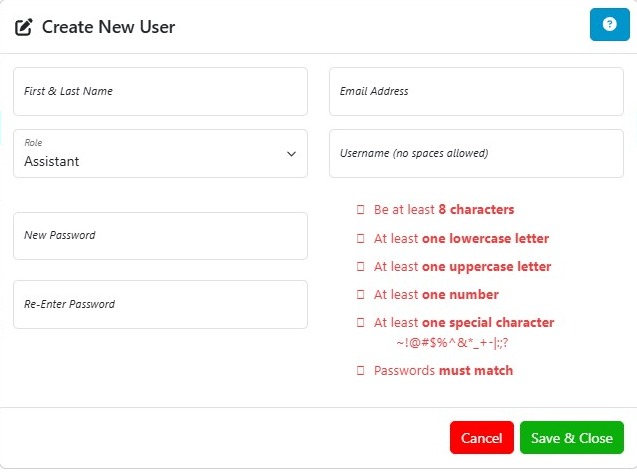
Select Create User in the top right to open the new user wizard.
Note: The username can be either an email or an alphanumeric name.
The Filters tab can be utilized to search for a specific user by email or username. You may also toggle on "Show Inactive" to display any users that have been deactivated. This is useful if you ever need to re-enable a user who has been previously disabled.

Each user entry contains 7 columns of information and a tasks menu. Below is a description of the information contained in each.
Role - Lists users currently assigned role.
Status - Lists whether the user is active or inactive.
Time Until Unlock - Lists the time remaining until the user's login will be unlocked. If a user enters invalid login information 5 times on the Portal login page, they will be locked out for 5 minutes. This lockout can be lifted prematurely by selecting "Forgot Your Password?" on the login screen and successfully resetting your password. A manager user can also set a new password for the user by selecting the yellow set password icon under the Tasks column.
Appointments
Exam Results
 Note: The MedWand Kiosk only stores exam results for up to 30 days after exam completion. If results need to be stored for a longer period of time, please use the download options referenced later in this article to save them to your computer or server.
Select Download as Image File(s) to save results as separate media files
On the displayed Exam Results Download page, select the green download button next to each vital you would like to save to a file. All files are saved in JPEG format with the exception of stethoscope recordings, which are saved as MP3's.